


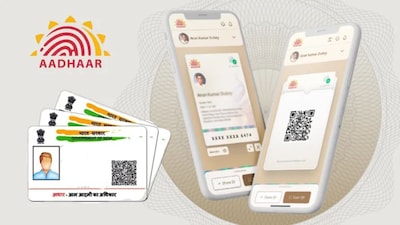
The mAadhaar app is a powerful tool for managing your digital identity in India. It allows you to carry your Aadhaar profile on your phone, eliminating the need for a physical card in many scenarios.
Here is how you can use the app to show, share, and verify identity:
1. Show Your Identity
You can use the app to display your digital Aadhaar as a valid ID proof at airports, railway stations, or for other services.
-
Aadhaar Profile: Once registered, your profile (including your photo and demographic details) is visible on the main dashboard.
-
Show QR Code: Instead of showing the full card, you can tap “Show QR Code” on your profile. This displays a secure, digitally signed QR code that others can scan to verify your details without seeing your full 12-digit Aadhaar number.
2. Share Your Identity (e-KYC)
For paperless verification (like opening a bank account or getting a SIM card), you can share your data securely.
-
Share QR Code: You can share the digital QR code image via messaging apps or email.
-
Paperless Offline e-KYC:
-
Select “Aadhaar Paperless Offline e-KYC” from the dashboard.
-
Enter your Aadhaar number and a 4-digit Share Code (which you create).
-
The app generates a password-protected XML file containing your name, address, photo, etc.
-
You can share this file and the Share Code with the service provider for instant, offline verification.
-
3. Verify Identity
The app isn’t just for your own data; you can use it to verify if someone else’s Aadhaar is genuine.
-
QR Code Scanner:
-
Tap the “QR Code Scanner” icon on the dashboard.
-
Point your camera at the QR code on a physical Aadhaar card or e-Aadhaar.
-
The app will decrypt the data and show the person’s name, gender, DOB, and photo, confirming if the data is verified by UIDAI.
-
-
Verify Aadhaar Number:
-
Tap “Verify Aadhaar” on the home screen.
-
Enter the 12-digit Aadhaar number you wish to check and the captcha.
-
The app will confirm if the Aadhaar is active and show the cardholder’s age band, gender, and state.
-
Quick Tips for Success
-
Registration: To use “My Aadhaar” features, your mobile number must be linked to your Aadhaar to receive an OTP.
-
Security: Always use the “Biometric Lock” feature in the app to prevent unauthorized Aadhaar authentication.
-
Password: If you download your e-Aadhaar (PDF), the password is the first 4 letters of your name in CAPITALS followed by your year of birth (e.g., NAME1990).
Read more
for more refer income tax website click here
for more refer YouTube Subscribe website click here
for more uidai website click here
Your Queries solved
Show share & verify identity using aadhaar app android,
Show share & verify identity using aadhaar app download,
Show share & verify identity using aadhaar app apk,
E download Aadhar card,
Download Aadhar card PDF,
My Aadhaar login,
Aadhaar app download,
My Aadhaar,
My Aadhaar download,
UIDAI gov in,
My Aadhaar update,
UIDAI gov in Aadhaar,
My Aadhar UIDAI gov in,
UIDAI-mobile number link,
M-Aadhaar,
Google News facebook,
Google go to Shorts,
Facebook en Google,
Google trending facebook,
Google Facebook number,
Facebook dijiye google,