


How to Turn Off AI in Google Search: The Simple URL/Text Modifiers
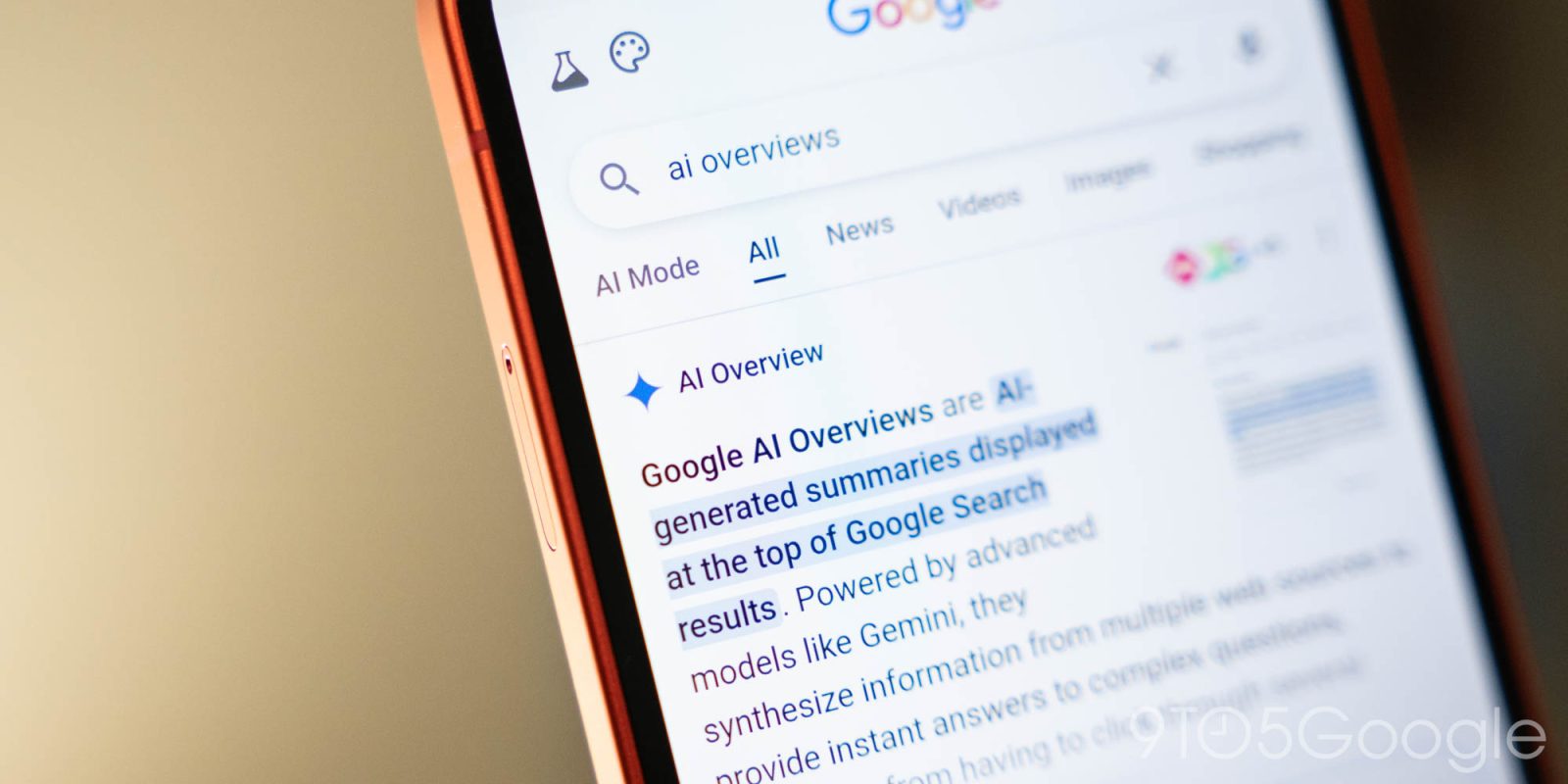
Google has made its stance completely clear: AI Overviews are a core, un-toggleable feature of the search experience. Just like Featured Snippets and Knowledge Panels, the company refuses to provide an official “off switch” in your account settings to disable its generative summaries.
However, tech enthusiasts and power users have discovered an incredibly elegant loophole. By utilizing Google’s decades-old search operators, you can completely break the algorithm’s ability to surface an AI Overview, forcing your results page to immediately load traditional web links instead.
🛠️ The Text Modifier: The -AI Trick
The absolute easiest way to strip AI out of a search result is by adding a simple negative operator to the very end of your search phrase:
🔍 The Pattern:
[Your Search Query] -AI
  [ Standard Search ] ──► "how to fix a leaky faucet"    ──► Triggers giant generative AI Overview block
  [ Modified Search ] ──► "how to fix a leaky faucet -AI" ──► Strips the AI block out completely
Why Does This Work?
The minus sign (-) is a legacy Google Search operator that explicitly instructs the engine to exclude any web pages containing that specific keyword.
Because Google’s backend algorithm requires an intersection of high-ranking “AI-related” structural data blocks to compile and justify rendering a generative summary, telling the system to completely block the word “AI” creates a logical contradiction in the ranking loop. The algorithm panics, skips the automated summary generation entirely, and falls back to a clean, standard results page.
Note: In independent testing by PCMag, adding any non-sensical exclusion modifier (like -efewg or -i) achieved a similar effect, but using -AI or -AI Overview is the most reliable trick to keep in your back pocket.
🌐 The Built-In Workaround: The “Web” Filter
If you don’t want to manually type an operator every time you search, Google actually includes a hidden, clean view directly inside its interface called the Web Filter.
-
Execute your Google search exactly as you normally would.
-
Directly underneath the main search bar, look at the category filters (Images, Videos, News, Shopping).
-
Click on More (or swipe to the end of the row) and select Web.
The page will instantly reload, stripping away the AI Overview, shopping widgets, knowledge panels, and sponsored clutter—returning you to the pristine, classic “10 blue links” layout.
⚙️ How to Permanently Automate the Hack on Desktop
If you use Google Chrome, Microsoft Edge, or Brave on a desktop computer, you don’t have to type -AI manually every time. You can trick your browser into adding it automatically by creating a custom default search engine shortcut:
                  ┌─────────────────────────────────────────┐
                  │      Chrome Custom Search Engine        │
                  ├───────────────────┬─────────────────────┤
                  │ Shortcut Name     │ Google (No AI)      │
                  │ Shortcut Keyword  │ noai                │
                  │ URL string entry  │ {google:baseURL}sea…│
                  └───────────────────┴─────────────────────┘
-
Navigate to your browser settings and find the Manage Search Engines and Site Search section.
-
Click Add to create a new site search parameter.
-
Set the Shortcut Keyword to something rapid, like
noai. -
Copy and paste the following exact string into the URL field:
{google:baseURL}search?q=%s+-AI -
Save the configuration and select Make Default.
RELATED POST
. Google Search ads generative UI, AI booking tools and search agents
. We’re introducing new ways to design in real time with Stitch.
. I/O ’26 Recap: Everything You Need to Know
. Introducing Gemini Omni: Create Anything from Anything
. TPU Training Day for I/O ‘26
. The Gemini app becomes more agentic, delivering proactive, 24/7 help
. Fuel your next wave of growth on YouTube with Demand Gen
. Everything Google announced at I/O 2026: Gemini, Search, Android XR, & more
OTHER