


Here’s how to use sign-to-text translation on Pixel 11.
Here’s how to use sign-to-text translation on Pixel 11.
The brand new Pixel 11 series will bring a new sign-to-text translation feature to people who communicate using American Sign Language (ASL). Developed in partnership with the Deaf community, the new feature is powered by a multilingual sign language-to-text (SL2T) translation model. It analyzes hand shapes, facial expressions, and body movements to translate ASL into written English sentences in real time.
The feature, which supports both one-handed and two-handed signing, lets signers use their native language to express themselves when using Live Transcribe or across their device with Gboard.
To use this feature on a Pixel 11 device, add sign-to-text to your Gboard toolbar, and sign in ASL to the front camera. The translations will appear on the outer display.
The Pixel 11 series is available on shelves now. Visit the Google Store for more information on availability and product updates.
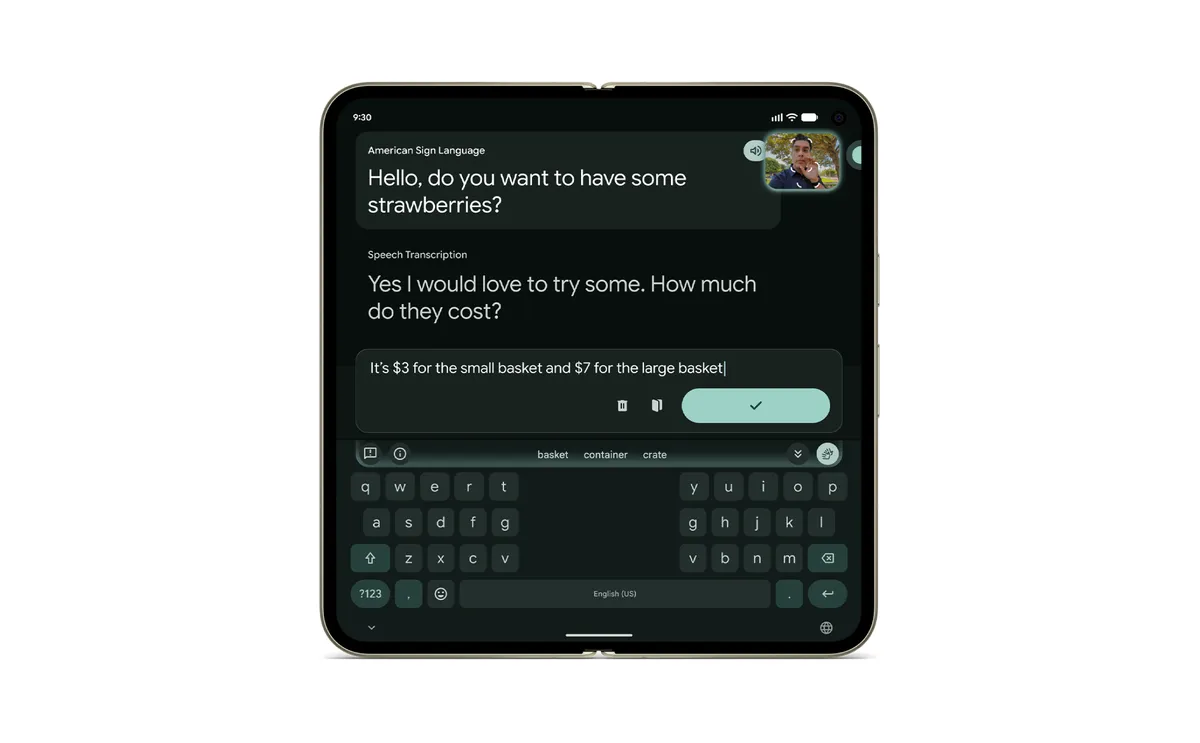
How to Activate and Use Sign-to-Text
- Open an App: Open any app where you can type (such as Google Messages, Notes, or the browser). [3, 6]
- Launch the Feature: In the Gboard toolbar, tap the Sign-to-text icon. If you don’t see it, tap the Menu icon (four squares) to locate and add it to your toolbar. [6, 7]
- Grant Camera Permissions: If prompted, allow Gboard access to your camera. This opens your camera viewport and an interactive preview window. [6]
- Position Yourself: Place your phone down or prop it up so the front camera has a completely clear view of your hands, face, and upper body. [6]
- Begin Signing: Start signing in ASL. The camera will track geometric landmarks across your face and hands, and translated English words will stream live into the text field. [6, 8]
- Finish and Send: When you are finished, move your hands entirely out of the camera’s view to let the tool know you are done. You can switch back to the regular keyboard at any time by tapping the Sign-to-text icon again. [6]
Important Tips & Privacy
- Privacy Controls: To protect your privacy, your pose coordinates, recorded videos, and text translations are not stored by Google.
- Editing Capabilities: You can seamlessly switch between signing and regular typing to review, modify, or select suggested words from the toolbar before sending your text.
- Accuracy Warning: Because ASL uses distinct grammar, facial expressions, and body language, translations can occasionally contain errors. Always check the translated text for accuracy, and do not rely on it as a replacement for qualified interpreters in high-stakes environments. [2, 3, 6, 8]