


In the process of “vibe coding” an app using Google AI Studio, images serve as the foundational blueprint and aesthetic guide for the AI. Here is how they are used to build the app structure:
- Defining Layout and Vibe: By uploading a hand-drawn sketch or a design reference (like a mood board or screenshot), you provide the AI with a visual context of how you want the app to look and function. This helps the AI understand the intended user interface and aesthetic style before any code is written (0:14–0:41).
- Populating Content: Once the initial structure is built, you can use images of your own items—in this case, your actual wardrobe—to replace placeholders in the app. By dragging a folder of images into the code section, you transform the demo app into a personalized tool that works with your specific data (1:05–1:23).
- Enabling Advanced Features: Images are also essential for functionality, such as virtual try-ons. By providing images of yourself or your clothes, the AI uses models like Nano Banana to process those visual inputs, allowing the app to virtually “try on” different outfits based on your requests (2:00–2:19).
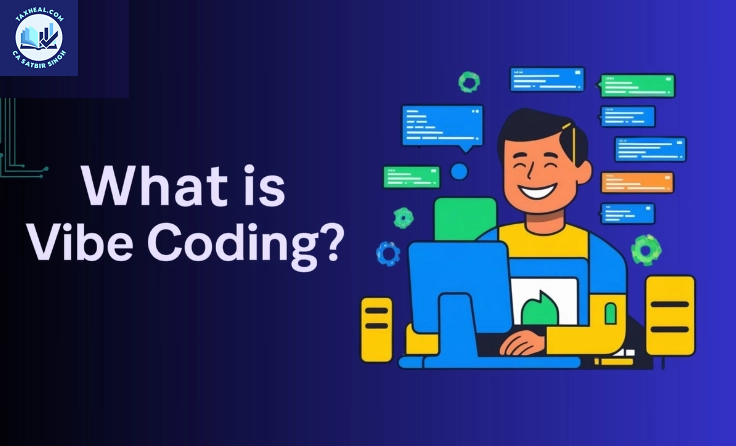
“Vibe coding” is the ultimate evolution of low-code development—it’s about using AI to turn a loose concept or a rough sketch into a functional application through natural language and visual prompts.
Since you’re starting with a drawing, you’re already halfway there. Here is the workflow to turn that “vibe” into a reality.
1. Prepare Your “Vibe” (The Sketch)
AI models are incredible at interpreting layouts, but clarity helps.
-
The Drawing: It doesn’t need to be professional. A napkin sketch or a whiteboard drawing works fine. Label your buttons (e.g., “Submit,” “Login”) and indicate where images or text blocks should go.
-
The Context: Think about the “vibe” or aesthetic. Is it “Cyberpunk,” “Minimalist Apple-style,” or “Brutalist”? Knowing this helps the AI style the CSS later.
2. Choose Your AI “Developer”
To go from a drawing to code, you need a tool with Vision capabilities.
-
Gemini (Right here!): You can upload your drawing, and I can generate the HTML/CSS/JavaScript or React code immediately.
-
Claude (Artifacts): Great for instant previews of the UI.
-
Cursor / Windsurf: These are AI-native code editors. You can drag your image into the chat, and it will write the files directly into your project folder.
3. The Prompting Process
Don’t just say “make this.” Use a Layered Prompting approach:
-
The Structural Pass: > “I’ve attached a sketch of a task-tracking app. Please write the functional React code and Tailwind CSS to match this layout. Make sure the ‘Add Task’ button is prominent.”
-
The Aesthetic Pass (The “Vibe”): > “Now, give it a ‘Glassmorphism’ look. Use a dark purple gradient background, blurred cards, and neon cyan accents for the buttons.”
-
The Functional Pass: > “Make the buttons actually work. Use local storage so that when I refresh the page, my tasks are still there.”
4. Rapid Iteration (The Core of Vibe Coding)
Vibe coding isn’t about getting it perfect on the first try; it’s about talking your way to the finish line.
-
If something looks off: Take a screenshot of the current app, highlight the error, and tell the AI, “Move this header 20px down and make the font bolder.”
-
Live Preview: Use a tool like Replit or Vercel to host the code instantly so you can see how it feels on your phone or browser.
5. Tools to Supercharge the Workflow from Vibe Code an App
| Tool | Purpose |
| tldraw (Make Real) | A digital whiteboard where you draw a UI, click “Make Real,” and it uses GPT-4o/Gemini to turn it into a working prototype instantly. |
| v0.dev | Specifically for Vercel users; you describe a UI or upload a shot, and it builds high-quality React components. |
| Cursor | The gold standard for “Vibe Coding” an entire codebase. It acts as an orchestrator for your project. |
Where are you starting? If you upload your drawing or describe it to me now, we can start writing the code for version 1.0 immediately!
21. Watch this before using generative AI
22. How AI works in everyday life Google AI
23. How Google Search Works (in 5 minutes)
24. How Google Protects Your Privacy if You Choose to Save Audio Data
25. How your location makes Google Search more helpful
26. Google Gemini: Mr. Fuzzy’s Big Adventure
27. Gemini in Google Classroom: Google AI tools for educators
28. Gemini Instant Replay New Fit
for more refer Artificial Intelligence website click here
Pingback: Artificial Intelligence