


Updated options to better view Google Calendar on large monitors
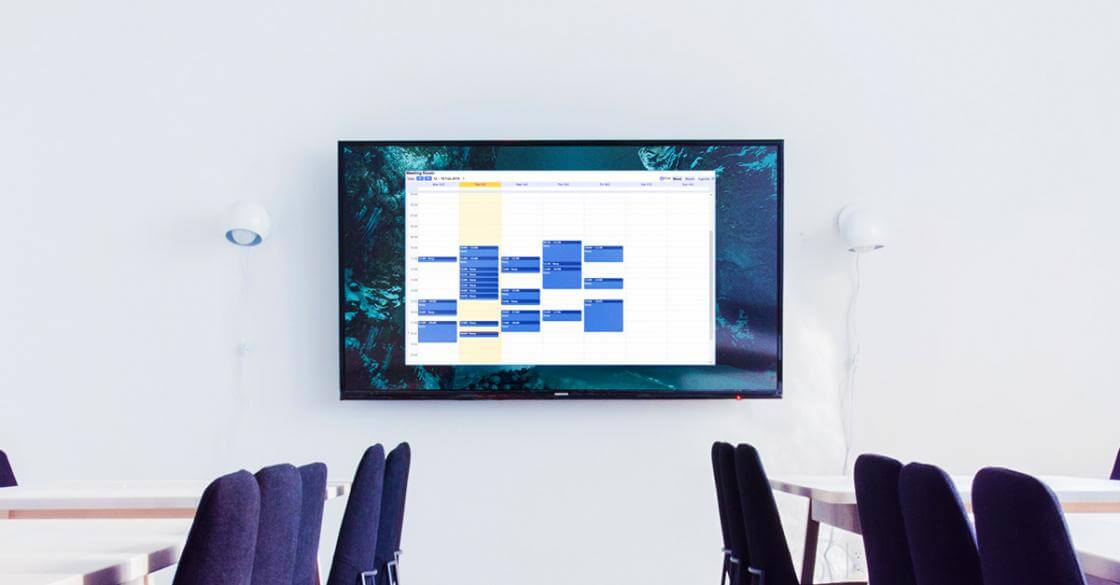
Updated options to better view Google Calendar on large monitors
To provide users with more control over their viewing experience, we’re updating information density options for the calendar grid. These updates allow users to customize how calendar events scale on their screens to accommodate various monitor sizes and personal preferences.
The available information density options now include:
- Responsive to your screen: Your calendar dynamically scales and enlarges events to fill larger monitors, which makes events easier to read.
- Comfortable: Your calendar keeps the standard layout with traditional spacing, regardless of your screen size.
- Compact: Your calendar shows a denser view with tighter spacing, which allows you to see more events at once.
 |
New options in Calendar information density to adjust for large monitors |
Getting started
- Admins: There is no admin control for this feature.
- End users: Change your density settings from the Appearance settings menu in Calendar on the web. Visit the Help Center to learn more.
Rollout pace
- Rapid Release domains: Extended rollout (potentially longer than 15 days for feature visibility) starting on July 29, 2026
- Scheduled Release domains: Extended rollout (potentially longer than 15 days for feature visibility) starting on August 10, 2026
Availability
- Available to all Google Workspace customers, Workspace Individual subscribers, and users with personal Google accounts
Resources
- Google Calendar Help: Change event color set and density in Google Calendar
The Three New Information Density Options
- Responsive to your screen: The calendar dynamically scales and enlarges events to fill up larger monitors. This reduces wasted whitespace and makes text much easier to read. [1, 2]
- Comfortable: The calendar retains its standard, traditional layout and spacing regardless of how large your screen is. [1]
- Compact: The calendar condenses the grid with tighter spacing, packing your events closer together so you can see more data at a single glance. [1]
How to Change the View Settings
- Open Google Calendar in your web browser.
- Click the Gear icon (Settings) in the top-right corner.
- Select the Appearance settings menu.
- Look for the Information density section and select your preferred scaling option. [1, 2, 8, 9]
Rollout Timeline (July/August 2026)
- Rapid Release Domains: Gradual rollout began on July 29, 2026.
- Scheduled Release Domains: Rollout begins on August 10, 2026.
- Availability: The feature will be globally accessible to all personal Google accounts, Workspace customers, and Workspace Individual subscribers by the end of August 2026. [1, 7, 8]
Read more
. Switch to Android easily and bring your data with you.
. Google’s Illyes Unsure On Shifting unavailable_after Dates
. Streamline collaboration in Google Docs with Gemini-powered comment workflows
. What Exactly Is USB-C? (The Real Reason Apple Lost)
. Generate and edit visuals with Gemini in Google Docs
. 3 Google updates from Galaxy Unpacked 2026
. Here’s how to ask Gemini Live for help with anything you see.
. Q2 2026 earnings call: Remarks from our CEO
. Introducing selfie for sign-in: a new, easy way to access your Google Account
for more refer Gemini website click here
for more refer Artificial Intelligence website click here