


Record presentations in Google Slides with Google Vids
Record presentations in Google Slides with Google Vids
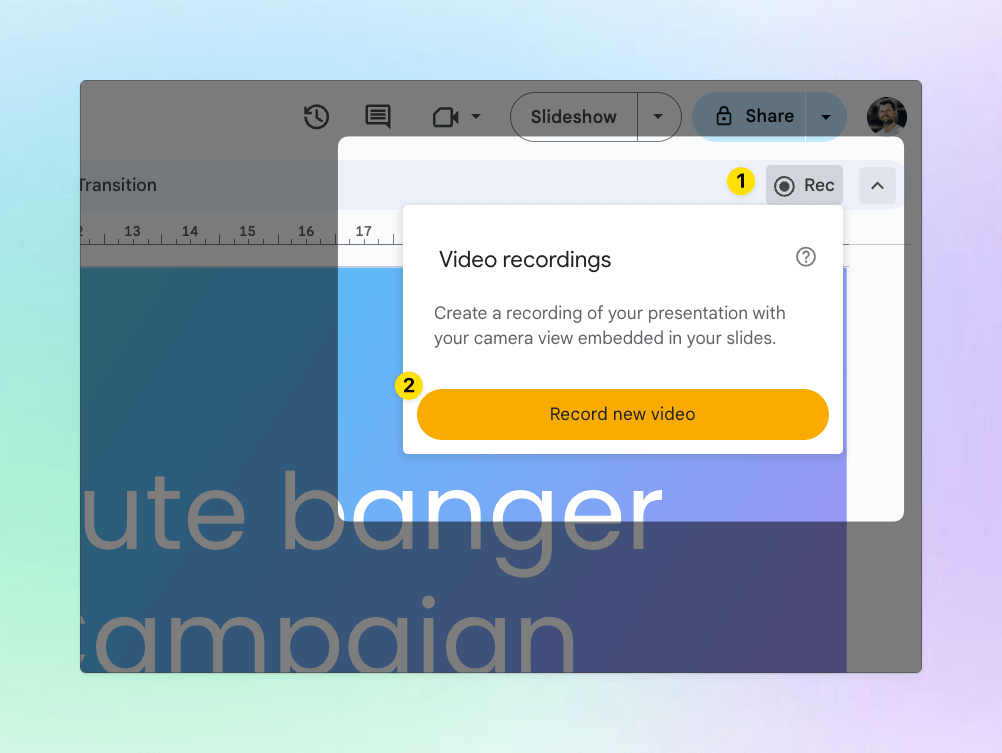
We are introducing a seamless way to record presentations in Google Slides using Google Vids directly from the Slides interface. Moving forward, you will see a new Record option in the right-hand menu of Slides. Selecting this option guides you through a streamlined recording workflow and outputs an immediately shareable link.
This new integration provides advanced creation capabilities—including transcript-based editing and voiceover generation—helping you turn simple slide decks into polished, professional video assets in seconds.
Note: For organizations currently using the existing Slides recording experience, here is what you need to know about the transition:
- Users with access to the existing Slides recording experience will have access to both the legacy experience and the new Vids recording experience.
- The legacy Slides recording option will move to the View menu (View > Slides Recording).
Getting started
- Admins: There is no admin control for this feature.
- End users: There is no end user setting for this feature. Use the Help Center to learn more about recording a presentation in Google Slides.
Rollout pace
- Rapid Release domains: Gradual rollout (up to 15 days for feature visibility) started on August 20, 2026
- Scheduled Release domains: Full rollout (1–3 days for feature visibility) starting on September 7, 2026
Availability
- Available to all Google Workspace customers, Workspace Individual subscribers, and users with personal Google accounts
Resources

How to Record Your Presentation
- Open your presentation in Google Slides. [4]
- Click the Record option located in the right-hand menu. [1, 5]
- Select “Record video” to launch the setup page. [4]
- Choose your recording layout from the layout menu:
- Camera & Screen: Captures both your slides and your webcam in picture-in-picture mode.
- Audio: Records only your voiceover alongside the slides.
- Screen: Records only the slideshow format. [4]
- Configure your gear by adjusting your preferred microphone, camera, or applying background visual effects. [4]
- Click Next to confirm, then start your presentation recording session. [4, 5]
Edit and Enhance in Google Vids
- Transcript-Based Editing: Crop, trim, or cut portions of your video simply by deleting lines from the auto-generated text transcript.
- AI Voiceovers: Generate synthetic voices or apply studio-quality narrative enhancements to your audio tracks.
- Timeline Adjustments: Splice in transitions between your slides, add background music tracks, or drop in high-quality stock media from the library.
- Instant Sharing: Once edited, publish the video file to instantly generate a shareable web link. [1, 4, 5, 6, 7, 8]
Important Account Access & Rollout Notes
- Account Availability: This feature applies to Google Workspace customers, Workspace Individual subscribers, and personal Google accounts. [2]
- Rollout Schedule: The feature rolled out starting August 20, 2026 for Rapid Release domains and will hit Scheduled Release domains starting September 7, 2026. [2]
- Legacy Slides Recording: If your organization still uses the old, standard Slides recording function, it can temporarily be found by navigating to View > Slides Recording in the top menu bar. [5]
Read more
. Use Gemini to help manage Google Workspace for your organization
. Managing unsolicited event invitations with user blocking in Google Calendar
. Robot beats Usain Bolt’s 100m world record
. Elevate your Google Meet experience for shared meeting spaces with Room Display mode
. Introducing Ask Gemini in Chat: your new partner in productivity
. Make information visual with ChatGPT
. Google’s most sophisticated foldable: Pixel 11 Pro Fold
. Granular space creation restrictions now available in Google Chat
. Allowlisted Domains API now generally available
. View Google Chat usage metrics in Gemini reports dashboard
. Introducing Gemini Enterprise
for more refer Gemini website click here
for more refer Artificial Intelligence website click here