


Assign temporary administrator roles in the Google Admin console
Assign temporary administrator roles in the Google Admin console
Admins can now assign administrator roles to users, groups, or service accounts for a defined period of time. Once the expiration time is reached, the access granted by the role is automatically revoked.
This feature helps minimize security risks by reducing standing privileges and ambient access throughout your organization. It also streamlines administrative overhead, removing the need to manually track and revoke temporary privileges for short-term projects, coverage during employee absences, or external audits.
When assigning a role, super admins can choose from predefined durations (such as 30 days) or set a custom expiration date and time.
Temporary roles cannot be assigned to the primary admin for your organization, as the primary admin requires permanent super admin privileges.

Getting started
- Admins: Visit the Help Center to learn more about assigning admin roles for a specific duration.
- End users: There is no end user setting for this feature.
Rollout pace
- Rapid Release and Scheduled Release domains: Available now
Availability
- Available to all Google Workspace customers
Resources
- Google Workspace Admin Help: Assign admin roles for a specific duration
How to Assign a Temporary Admin Role
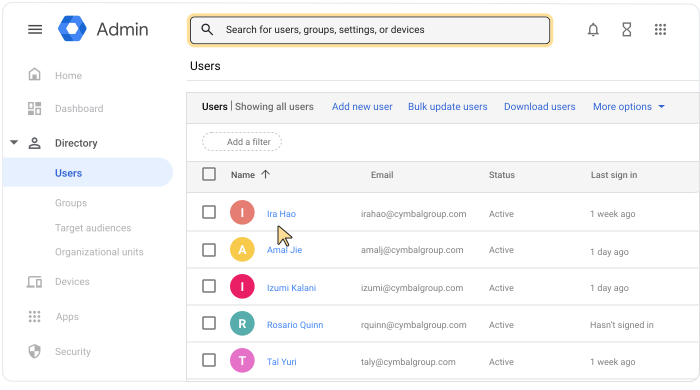
- Log in: Go to the Google Admin console and sign in using your super administrator credentials. [1, 3]
- Navigate to Roles: From the left-hand Menu, go to Account ➔ Admin roles. [1]
- Select the Role: Locate the predefined or custom admin role you want to grant, hover over it, and click Assign admin. [1, 4]
- Choose Members:
- Click Assign members (or “Assign service accounts” if you are provisioning an API or integration).
- Type the name or email address of the user, group, or service account and select them. (Note: You can assign a role to up to 20 members at a time). [1]
- Set the Expiration (The Temporary Window):
- Under the assignment settings, you will see the option to configure the role duration.
- Choose a predefined duration (such as 30 days) or select a custom expiration date and time (up to a maximum duration of one year). [2, 5]
- Save Changes: Click Assign Role. [1]
⚠️ Key Restrictions to Keep in Mind
- Primary Admin Exclusion: Temporary roles cannot be assigned to the primary administrator of your organization, as they require permanent super admin privileges. [5]
- No Auto-Renewal: Once the time window expires, access is strictly revoked. If a contractor or employee needs extended coverage, a super admin must manually reassign the role. [2]
- Are you trying to assign a predefined standard role (like Help Desk Admin) or a custom role?
- Do you need assistance setting up Multi-party approval for these sensitive actions?
Read more
. Manually reorder and custom sort pivot tables in Google Sheets
. Introducing the new Confluence integration with Google Chat
. Keeping flying satellites connected with lasers
. 5 amazing visuals show how the male fruit fly’s brain map is advancing neuroscience
. Quick notes in Take notes for me
. New Google Meet ‘Take notes for me’ settings for admins and end users take effect September 29th
. Making sure AI chips don’t overheat in space
. Use your voice to get more done in Gmail, Docs, and Keep
. Start the year AI-ready with the Google AI Educator Series
. Occupancy counting now available for Google Meet on Logitech room hardware
. Seamlessly import your emails from any IMAP server to Google Workspace
. Google Translate rolls out new upgrades for iOS and Android.
. Create your best tracks yet with Lyria 3.5 in Gemini.
. ASUS Googlebook 14 – Designed for Gemini Intelligence
. Gemini Omni 1.1 Flash now in Vids with improved extension quality, 1080p, and duration control
for more refer Gemini website click here
for more refer Artificial Intelligence website click here