


Turn Google Docs, PDFs, and Word files into video summaries in Google Vids

Turn Google Docs, PDFs, and Word files into video summaries in Google Vids
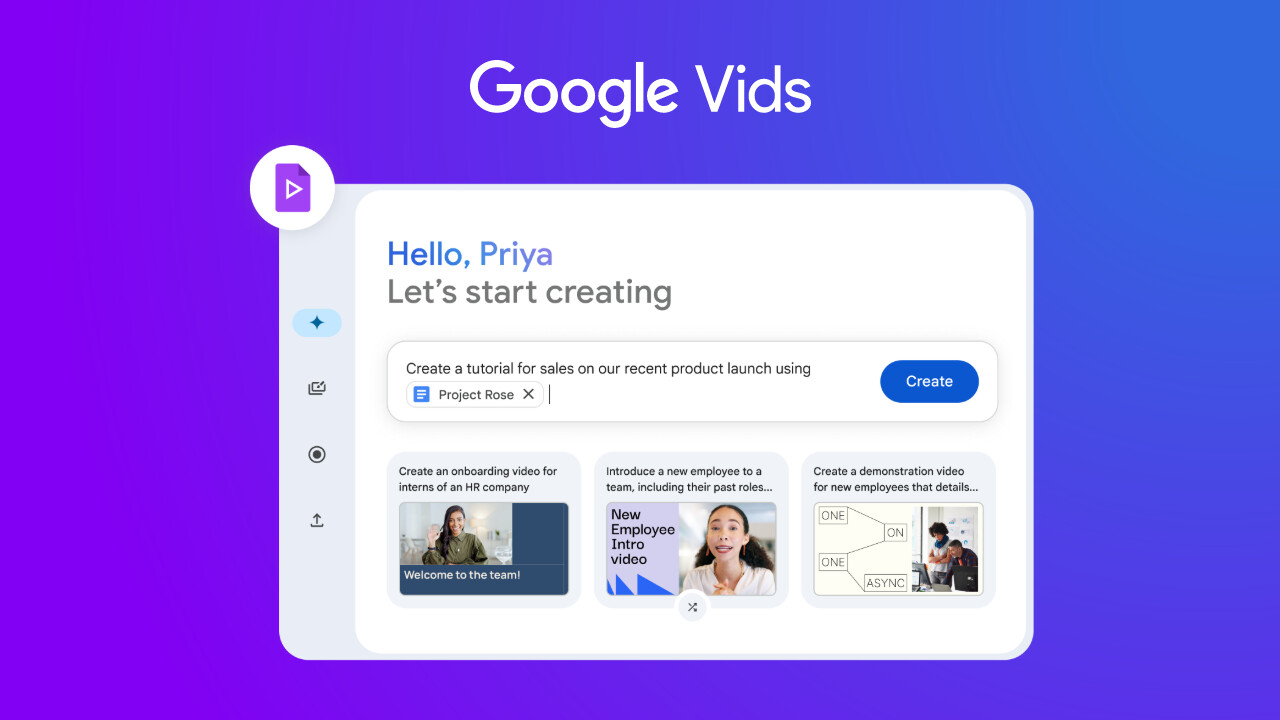
Google Vids now allows you to transform static Google Docs, PDFs, and Word files into engaging video summaries. This new feature leverages AI to generate scripts and narration while providing custom visuals to bring your documents to life.
Whether you are catching up on training material, meeting notes or reviewing lengthy documentation and reports, this tool is designed to make the process of digesting information effortless. By converting text-heavy files into concise videos, users can quickly grasp key takeaways through a more dynamic medium.
 |

Getting started
- Admins: There is no admin control for this feature.
- End users: There is no end user setting for this feature. Visit the Help Center to learn more or try it today at vids.new
Rollout pace
- Rapid Release domains: Available now
- Scheduled Release domains: Gradual rollout (up to 15 days for feature visibility) starting on September 5, 2026
Availability
- Business: Business Starter, Standard, and Plus
- Enterprise: Enterprise Starter, Standard, and Plus
- Education: Education Plus
- Consumer: Google AI Plus, Pro, and Ultra
- Other Editions: Nonprofits
- Education Add-ons: Google AI Pro for Education; Teaching and Learning
Resources
- Google Help: Create summary videos from documents in Google Vids
📋 Step-by-Step: Convert Your Documents to Videos
- Open Google Vids: Go to Google Vids (or type
vids.newinto your browser). [4] - Access the Tool: Click on the File menu at the top left, then select Convert Docs (or Docs to video). [1, 4]
- Upload Your File: Choose a supported file (
.doc,.docx, or.pdf) directly from your Google Drive or upload it from your computer. Click Next. [1, 2] - Review & Edit the Script: The AI will break your document down into chronological sections where each section represents a distinct video scene.
- To edit text: Type directly into any section or scene box.
- To delete a section: Click the trash icon next to that section. [1]
- Select an AI Voice: Click on the voice icon to customize the style and tone of the AI narrator. [1, 2]
- Generate: Click the Generate button. Google Vids will stitch together the script, voice track, and context-aware images or background visuals. [1, 2]
🔍 Account Requirements
- Plan Eligibility: You must be using an active, eligible Google Workspace tier or an authorized Google AI corporate plan.
- Feature Access: Availability is tied directly to having Gemini for Google Workspace enabled on your account profile. [1]
Read more
. Add co-presenters in Google Meet with one click
. Claude codes a sentence traveling through a brain
. Omni experts share what excites them most about the model.
. Google’s most sophisticated foldable: Pixel 11 Pro Fold
. Google Pics brings pro-level AI image creation and editing to Google Workspace
. Xiaomi IFA 2026 Launch Event
. Bring your spreadsheet data to life with Sheets canvas
. Automate Drive, Gmail, and Google Chat actions with new steps in Workspace Studio
. Custom instructions for Gemini in Workspace now available in more apps
for more refer Gemini website click here
for more refer Artificial Intelligence website click here